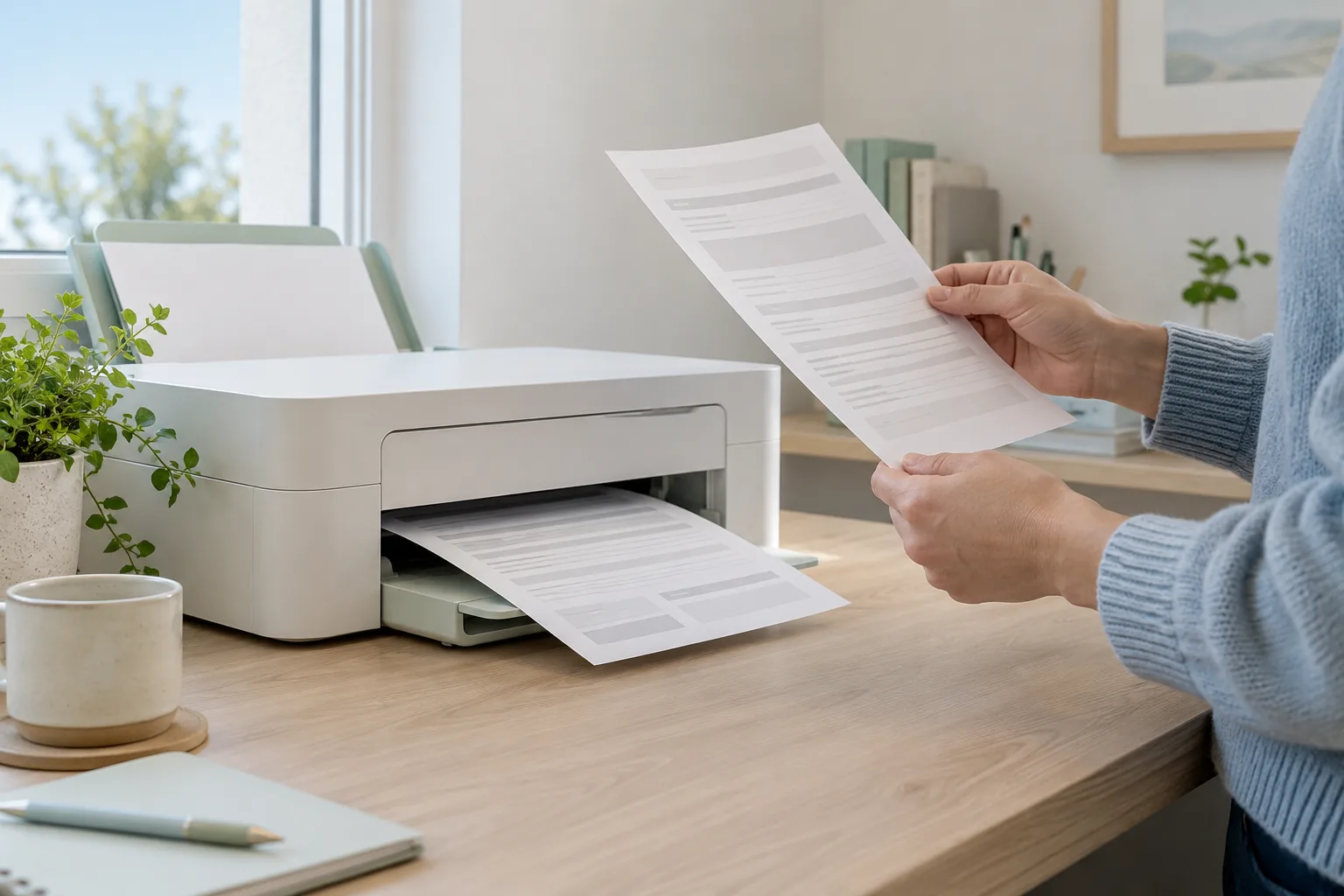
The final PDF deserves its own review. Data-entry screens and a document preview can look correct at a glance while a name is truncated, a year is wrong or an amount sits in the wrong field. Printing the file makes those mistakes more expensive to fix.
Review the actual output against the source records before printing or sending it. Work in a fixed order so attention does not jump between unrelated details. The steps below apply to a record-based PDF whether you prepare it yourself or receive it from someone else.
Begin with the person, organization and year
Check the taxpayer or worker name, the issuer or employer name, the intended document type and the relevant year or period. Read each identifier against its protected source record one group of digits at a time. A nine-digit format check cannot establish that the number belongs to the intended person.
Then review the address, account reference and any state or jurisdiction entries. Use the version appropriate to the reporting period. A current template is not automatically suitable for reproducing an older document. Resolve a mismatch before looking at the financial entries, because accurate amounts on the wrong person’s document are still a failed preparation.
Compare each amount with a labeled source
Place the approved worksheet or original record beside the PDF. Match each field label and amount, including cents, negative signs where permitted and blanks. Do not rely on the total looking plausible. A transposed digit can leave a document looking polished while changing a payment or reported amount.
If a worksheet contains several related totals, identify which one belongs to the field. Annual wages, current-period wages, net pay and taxable wages are different figures. A fictional worksheet with $1,250 and $1,520 on adjacent lines shows how easily a glance can miss a transposition. Read the field and number together, then move to the next entry.
Inspect every page at a readable size
Zoom in enough to read long names, addresses, codes and amount boxes. Check whether text is clipped or collides with a label. Review checkmarks and their surrounding wording; a tick in the wrong position can be harder to notice than a misspelled name.
Open all pages in the actual file you intend to send. Check that the page count and copy labels match its purpose. If you changed an answer after an earlier download, generate and review the updated file. Do not assume a file already sitting in Downloads includes the latest edits simply because its name matches the current document.
Check that the copy is suitable for the intended use
Read the printed copy label and any restrictions on the form. For example, the official downloadable 1099-NEC warns that its online Copy A is informational and unsuitable for paper filing with the IRS. A recipient copy also does not replace the required agency submission. The intended recipient and filing method matter.
If the document requires a signature, certification or accompanying material, review those requirements before sending it. A typed name does not automatically satisfy every recipient’s process. Formz prepares supplied information as a PDF; it does not guarantee recipient acceptance, authenticate the underlying records or submit government filings. Resolve the intended use through the actual recipient or official instructions.
Review the print preview or final attachment
Use the print preview to check page selection, paper size, orientation and scaling. Follow any form-specific print instructions. If a layout is cut off, fix the setting or document before producing the full set. For a document meant to be read or signed, print one copy and inspect it at normal size when needed.
For digital delivery, confirm the recipient and open the attachment you actually selected. Use a file name that identifies the form and year without exposing a full tax identifier. Retain the final reviewed PDF and its supporting records. Keep document-preparation payment receipts, delivery records and agency acknowledgments labeled separately so each piece of evidence answers the right question.
Common questions
Does successful PDF generation prove the information is correct?
No. It shows that a file was prepared. Review its values against authoritative source records and confirm its intended use.
Does a downloaded recipient copy complete government filing?
No. Check the copy label and official filing requirements. Agency submission is separate from preparing or sharing the PDF.
Official sources
Source links reviewed October 4, 2026. Use the instructions for your selected year and check current agency updates before submission.
Turn your records into the right document.
Choose a supported form, enter the details in your records and review the complete PDF before checkout.
Formz prepares supplied information. Review signatures, attachments and filing or delivery separately.